Sorting
Relevance orders the filtered results by resolution, the two pinned groups (CiNEPHiLES, then FraMeSToR), genuine releases before those tagged as an upscale, whether the release has a group, HDR, Hybrid REMUX / REMUX, audio tier, preferred release-group tier, and size. Among releases that tie before size, the release with more NZB copies in the results sorts first, so a pick has more backups if one NZB fails; size then breaks the remaining ties. Copies are the separate uploads of that release, the NZBs NZBGet would use as duplicate backups: one upload listed by several indexers counts once. Dolby Vision ranks before HDR10+, HDR/HDR10, HLG, and SDR or unknown within a resolution. The size and age modes sort by their selected property instead. Max results limits provider requests and, when positive, the filtered picker; the show-all picker view is not truncated. Auto-select plays the best surviving result, but opens the picker if no result passed your filters. Local filters and ranking also apply to StreamNZB results, but StreamNZB always opens the picker and ignores Auto-select.
Kodi screenshots
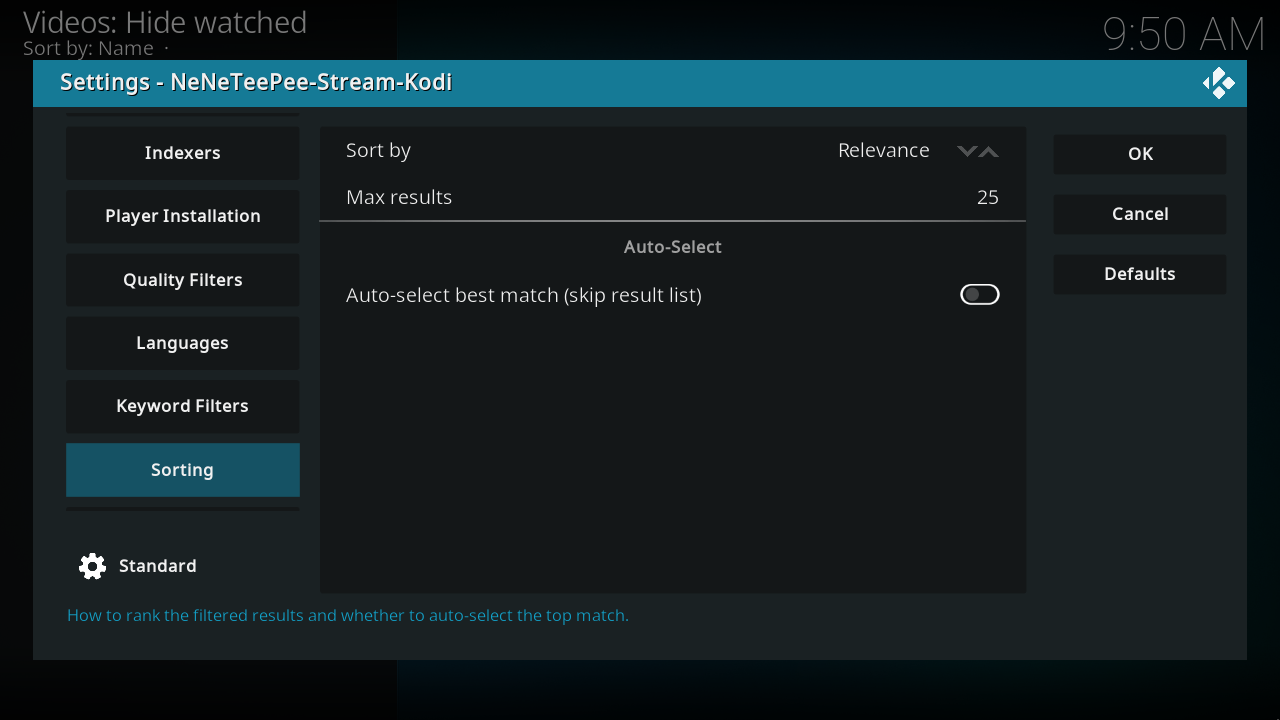
Captured on the OrbStack Kodi VM from commit db07f61. Debug overlays are off, and credentials use example values. Capture details.
Every option
Options
| Option and setting ID | Default | What it does |
|---|---|---|
Sort by1sort_order |
Relevance | Relevance ranks highest resolution first, then CiNEPHiLES and FraMeSToR releases, then releases tagged as an upscale last in their resolution, then releases with a group above those without, then Dolby Vision, HDR10+, HDR/HDR10, HLG, and SDR. Ties use Hybrid REMUX, REMUX, audio (lossless, then Atmos on DD+ and lossy DTS:X, then DD+/DD/DTS, then the rest), preferred group tiers, more NZB copies of the release, then larger size. Size and age modes sort by that property only. Choices: 0 = Relevance, 1 = Size (largest first), 2 = Size (smallest first), 3 = Age (newest first), 4 = Age (oldest first). |
Results viewresults_view |
List compacted | How the picker lays out results. List compacted shows each release once and lists the indexers that carry it in a panel on the right; copies are grouped with the same rule as the NZB-copies tiebreak and NZBGet backups, and Enter plays a copy that is already downloaded if there is one, otherwise the top-ranked copy. List shows every indexer copy on its own row. Choices: 0 = List compacted, 1 = List. |
Max results2max_results |
25 | Local provider clients clamp the request limit to 1–10000. The filtered picker uses the raw integer and truncates only when it is positive. A value of 0 requests one result per local provider but leaves the combined filtered picker unbounded; values above 10000 remain the picker limit. The show-all view is not truncated. StreamNZB owns its server search limit. |
Read the NFO of the top releasesnfo_audio_releases |
3 | When an indexer offers a release's NFO with its search result, the add-on reads it for this many of the first releases of a search and uses the audio it names for the release's label and ranking, in place of what the name tags. A name such as Movie.2004.MULTi.1080p.BluRay.x264-GRP tags no audio; its NFO says DTS-HD MA 5.1. Where the indexer also serves MediaInfo (Treasure Maps), that is asked for first and the NFO is the fallback; MediaInfo also gives the HDR format, the Dolby Vision profile and the bit depth. With direct indexers the add-on asks by release id with the indexer's own key. One or two API calls per release as a rule, three at most, done once and remembered. 0 turns it off; the highest value used is 5. See Audio from the NFO. |
Auto-select
| Option and setting ID | Default | What it does |
|---|---|---|
Auto-select best match (skip result list)3auto_select_best |
Off | For nzbdav / InfiniDysk and NZBGet, play the best result that passes the filters without opening the picker. If no result passes, open the picker. StreamNZB always opens the picker and ignores this switch. |
Search Progress
| Option and setting ID | Default | What it does |
|---|---|---|
Show search progress windowsearch_progress_window |
On | After you press play, show a window that follows the search step by step: the title and IDs, the search, how each indexer answered, the NFO and MediaInfo reads, and the list being prepared, with the log file's location and a Cancel button. Off shows only Kodi's small indicator in the corner, naming the stage in hand. See Search progress window. |
Source notes
Labels and schema defaults are from commit db07f61. Runtime limits can differ from the editable schema; the explanations identify those limits. Links use the full commit ID, so later changes to main do not move them.
The picker limit is separate from the provider request clamps.