Set up TMDBHelper
Current released packages (Stable 1.2.3 and Beta 2.0.0-beta.2) use the Kodi menu name NZB-DAV. In those builds, choose that name wherever these instructions show NeNeTeePee-Stream-Kodi. Renamed source builds use the new name.
TMDBHelper is required for this title-browsing workflow. NeNeTeePee-Stream-Kodi plays titles you choose in TMDBHelper. To connect the two, you install a NeNeTeePee-Stream-Kodi player file into TMDBHelper and set it as your default player.
Install the player file
- Make sure TMDBHelper is installed and you've configured NeNeTeePee-Stream-Kodi's connections.
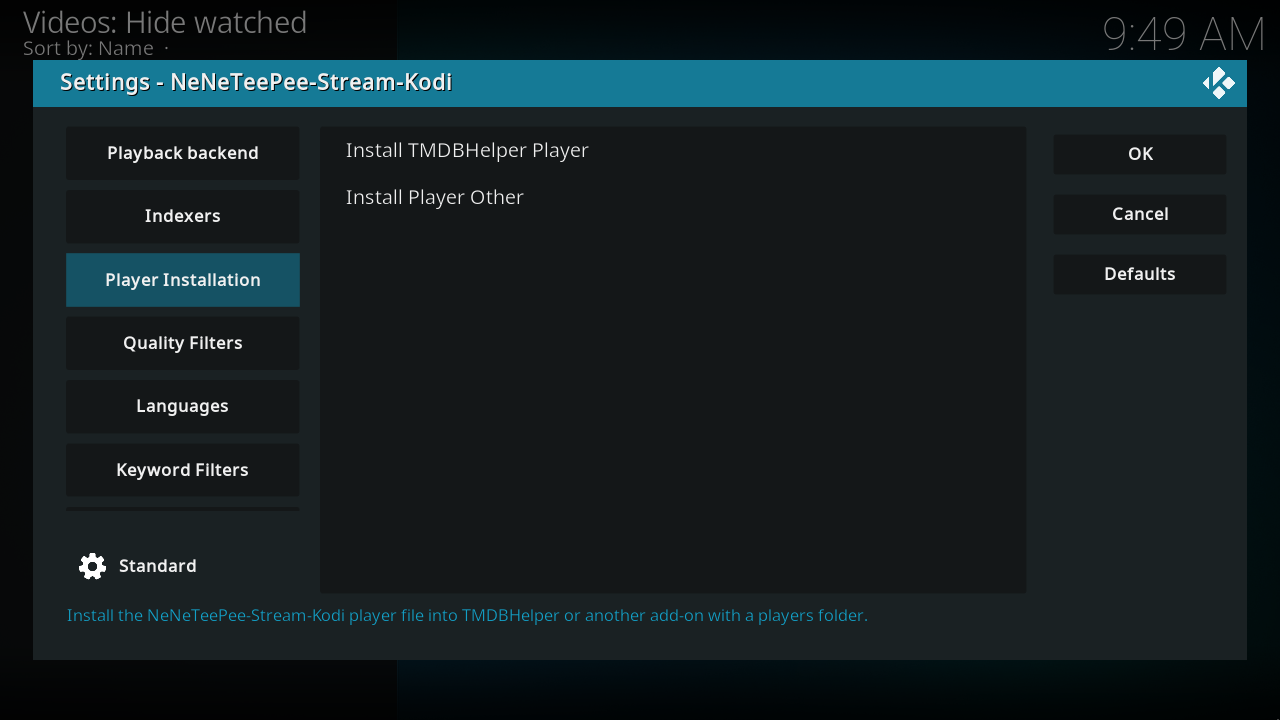
- In NeNeTeePee-Stream-Kodi settings, open the Player Installation tab.
- Select Install TMDBHelper Player.
This writes a small nzbdav.json player file into TMDBHelper's players folder
(addon_data/plugin.video.themoviedb.helper/players/) and registers
NeNeTeePee-Stream-Kodi as a selectable playback source. It also turns on TMDBHelper's
only_resolve_strm setting. Without that setting, TMDBHelper doesn't run
NeNeTeePee-Stream-Kodi's script action directly (see Why NeNeTeePee-Stream-Kodi uses a script player).
You get a Player installed to: TMDBHelper notification.
NeNeTeePee-Stream-Kodi protects your data while doing this:
- It refuses to write anywhere outside Kodi's add-on data folder.
- If a player file with the same schema version is already present, NeNeTeePee-Stream-Kodi
keeps it as is, so your manual edits survive. NeNeTeePee-Stream-Kodi backs up a file from an
older schema version to
nzbdav.bakand then replaces it. If it can't write the backup, the install stops and your existing file stays in place. - If the write fails, you get a Failed to install to: … message instead of a false success.
Re-run the install after updating NeNeTeePee-Stream-Kodi
Updating the add-on doesn't update an installed player file. Select Install TMDBHelper Player again after an update to pick up player file changes.
See every player installation option for commit-pinned installer references.
Install into another add-on's player list
If you use a different front end that reads TMDBHelper-style player files,
select Install Player Other on the same tab. NeNeTeePee-Stream-Kodi scans Kodi's add-on
data folders (addon_data/*/players/) for add-ons that already have a
players folder, apart from TMDBHelper and NeNeTeePee-Stream-Kodi itself. It lists them and
installs nzbdav.json into the one you choose, with the same safeguards as
preceding. There's no fixed list of supported add-ons. If no add-on has a
players folder yet, you get a notification and nothing is written. This
route doesn't change any setting in the other add-on.
Set NeNeTeePee-Stream-Kodi as your default player
- Restart Kodi, or open TMDBHelper and select Players → Update players.
- In TMDBHelper settings, set Default player (Movies) and Default player (TV Shows) to NeNeTeePee-Stream-Kodi.
The add-on's optional TMDB API key belongs to its Indexers settings. It is separate from the player selection and TMDBHelper's own API settings.
Why NeNeTeePee-Stream-Kodi uses a script player
The NeNeTeePee-Stream-Kodi player file launches playback with a RunScript action instead of a
plugin:// URL. This is deliberate: on CoreELEC and Kodi 21, asking Kodi to
open a plugin:// URL as a playable item can crash the player before NeNeTeePee-Stream-Kodi's
code even runs. RunScript enters the add-on directly, shows the source picker,
and then starts playback. You don't need to
configure anything for this; the installed player file already does it.
Verify
Open any movie or episode in TMDBHelper and start playback. If the NeNeTeePee-Stream-Kodi source picker appears, setup is complete. If NeNeTeePee-Stream-Kodi doesn't show up as a player, see Troubleshooting → NeNeTeePee-Stream-Kodi doesn't appear in TMDBHelper.
Next step
Refresh the player name
If TMDBHelper still shows the old add-on name, run the player installation action again. The installer backs up the previous player file before replacing it with the renamed player. The add-on ID and playback routes stay the same.