Play your first title
Connect your backend service before you start. All three backends use the release picker. Download progress, proxy seeking, and recovery options depend on the backend you selected.
With the connections configured and TMDBHelper set up, you're ready to stream.
Start playback
- Open TMDBHelper and browse to a movie or TV episode.
- Start playback. If TMDBHelper asks which player to use, choose NeNeTeePee-Stream-Kodi.
- NeNeTeePee-Stream-Kodi searches your providers and shows the source picker. If no provider returns anything, you get a No results found notification instead.
Choose a source
The picker is a full-screen list of the releases that passed your filters, ranked by your Sort by setting and capped at Max results (both on the Sorting tab). Each row shows the release name, file size, age, indexer, release group, resolution, HDR format, video codec, audio format, source type, and container.
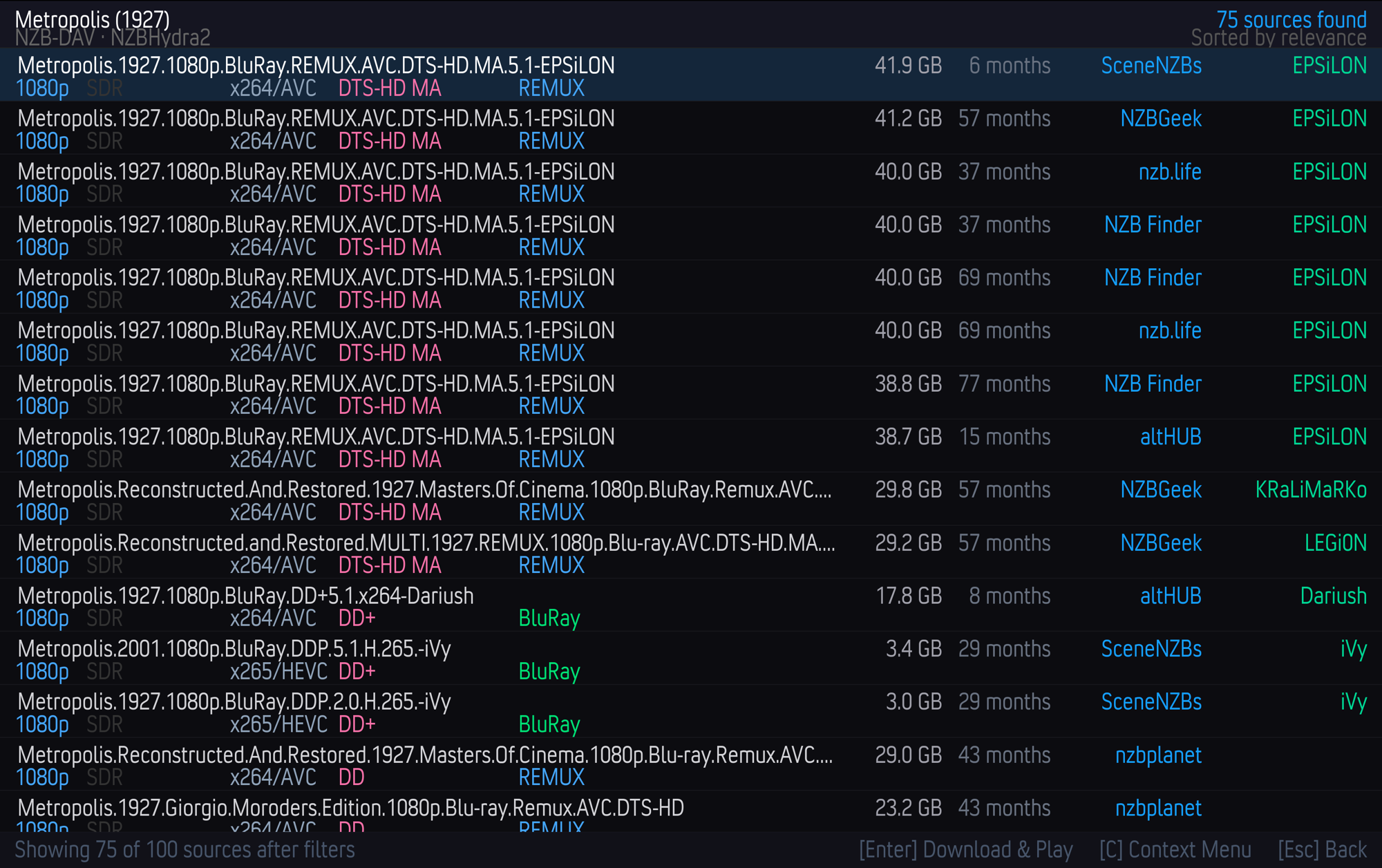
- A green DL tag marks a release that's already completed on your backend (nzbdav, or NZBGet in NZBGet mode). NeNeTeePee-Stream-Kodi matches it by exact name and a close size match, so it can play almost immediately without downloading again.
- The status bar shows Showing N of M sources after filters.
- Press Enter (OK) on a row to download and play it.
- Press Esc (Back) to close the picker without playing anything.
If you turn on Auto-select best match (skip result list) on the Sorting tab, NeNeTeePee-Stream-Kodi skips the picker and plays the top-ranked result that passed your filters. If nothing passed, the picker opens anyway.
Show filtered-out releases
Press C (or your remote's context-menu button) to switch between the
filtered list and all results. The footer shows how many releases are
hidden. In the all-results view, each release your filters would have removed
carries a yellow FILTERED: chip naming the first filter that rejected it:
resolution, HDR, audio, codec, language, keyword, group, or
size. This view isn't capped by Max results. You can still pick any of
those rows, and NeNeTeePee-Stream-Kodi plays exactly that release. Press C again to
return to the filtered list. Your saved filter settings don't change.
- If your filters removed every release, the picker opens directly in the all-results view.
- On CoreELEC and other Linux devices where NeNeTeePee-Stream-Kodi can read the remote's input device, you can also hold OK for five seconds to turn filters off. The footer shows [Hold OK 5s] Filters off when this works. A short press still selects the row.
See Quality filtering and sorting for the filters themselves.
Reuse a completed season pack
Beta feature
Added in 2.0.0-beta.2, available on the Beta channel.
When a completed backend job contains several clearly named episodes, NeNeTeePee-Stream-Kodi remembers which episodes it holds. When you later play one of them, the picker's first row is Already downloaded season pack - Episodes …. Selecting it, or letting auto-select pick it, reuses the completed download without submitting another NZB.
Before playback, NeNeTeePee-Stream-Kodi rechecks that backend job and its completed folder and picks the file whose name matches the requested season and episode. It never plays a different episode in its place. If the job or folder has been removed, NeNeTeePee-Stream-Kodi forgets the pack. A temporary network, login, or server error doesn't: the pack stays saved for next time, and the normal search results are still there to pick from.
Watch the download progress
After you pick a source, NeNeTeePee-Stream-Kodi submits it to nzbdav and shows a progress dialog that reflects the real download state. NZBGet mode uses its own progress dialog. See NZBGet backend.
| Stage | What it means |
|---|---|
| Submitting NZB… | NeNeTeePee-Stream-Kodi is sending the NZB to nzbdav. |
| Queued… | Accepted, waiting to start. |
| Fetching NZB… | nzbdav is retrieving and parsing the NZB. |
| Waiting for propagation… | Waiting for article availability. |
| Downloading… n% | Actively downloading. |
| Paused | The backend paused the job. |
Playback starts automatically once the video file is available over WebDAV. NeNeTeePee-Stream-Kodi waits past the small placeholder file nzbdav creates at job start, and checks that the middle of the file can actually be read. If it can't, you get Download completed but the video file is incomplete instead of a broken player. See Troubleshooting.
Resume where you left off
If you've watched part of a title before, NeNeTeePee-Stream-Kodi offers Kodi's native Resume from… / Start from beginning prompt when you replay it. The prompt follows Kodi's own default play action setting. NeNeTeePee-Stream-Kodi tracks resume points per release, so they survive even though the underlying stream URL changes each session.
One-time seeking setup for large files
If a stream you started from TMDBHelper is served through an ffmpeg remux,
NeNeTeePee-Stream-Kodi may show a dialog about advancedsettings.xml, at most once per Kodi
session. It suggests setting Kodi's cache memory size to 0 so large files can
use pass-through with full seeking on 32-bit Kodi builds. NeNeTeePee-Stream-Kodi only reads
that file to decide whether to show the dialog. It never edits it or changes
modes based on it. See
advancedsettings.xml and seeking for the
exact steps.
What happens behind the scenes
If you're curious how a pick becomes a playing stream (search, submission, polling, the local proxy, and mid-playback recovery), read How it works.
Something didn't work?
See Troubleshooting for the most common setup, search, WebDAV, and playback issues.