Settings guide
Settings at a glance
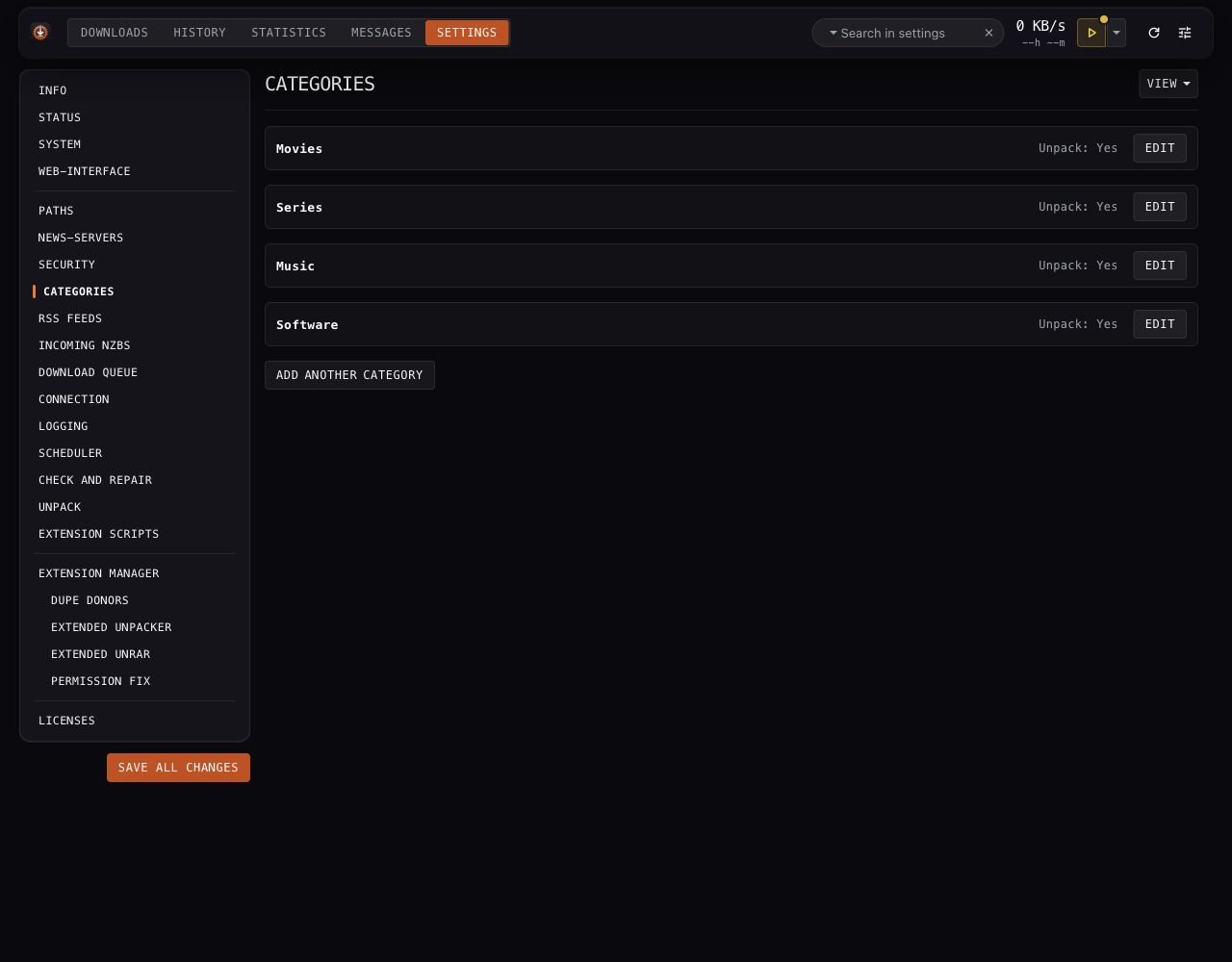
Pictures use an isolated demonstration service and example values. Credentials are blank, folders use variables, and extension defaults are sanitized. These pictures illustrate the controls. Choose values for your installation; the pictured status comes from the demonstration service. Your build and installed extensions can differ.
Find the section you need
| Settings section | Guide | What to configure |
|---|---|---|
| Web-interface, Paths, News-servers, Security, Categories | Basic setup | Browser preferences, folders, providers, accounts, and download categories |
| Incoming NZBs, Download queue, Connection, Logging | Downloads and diagnostics | Intake, duplicate recovery, queue storage, retries, and logs |
| RSS Feeds, Scheduler | Feeds and schedules | Feed rules and timed tasks |
| Check and repair, Unpack | Repair and unpacking | Article checks, par2, and archive extraction |
| Extension scripts, Extension manager, optional extension pages | Extensions | Script hooks, ordering, installation, and extension settings |
| Info, Status, System, Licenses | Maintenance | Help, service health, backups, reloads, and attribution |
The configuration reference describes every core option, its default, and its accepted values. Numbered entries appear there as ServerN, CategoryN, FeedN, and TaskN.
Edit one entry at a time
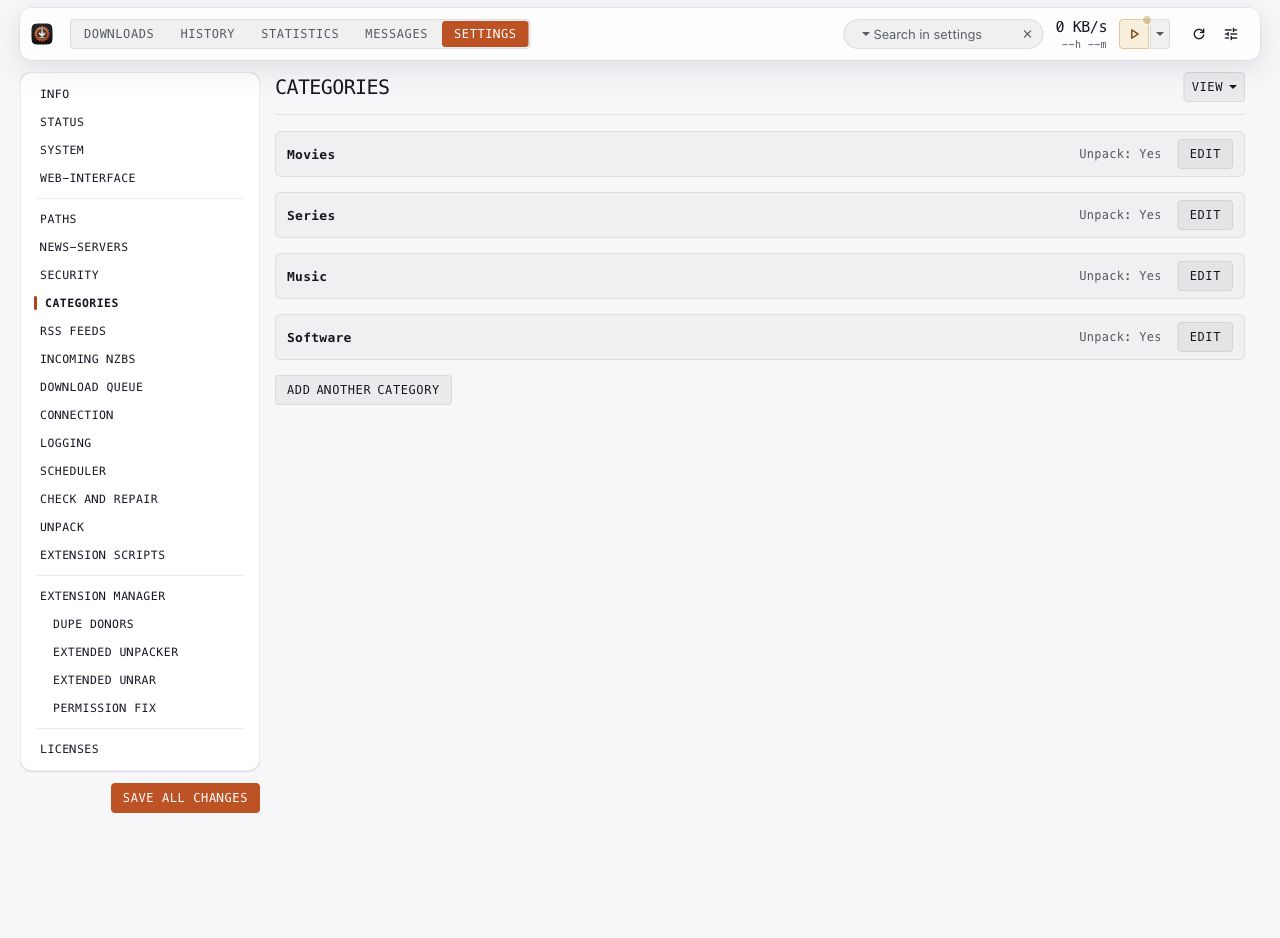
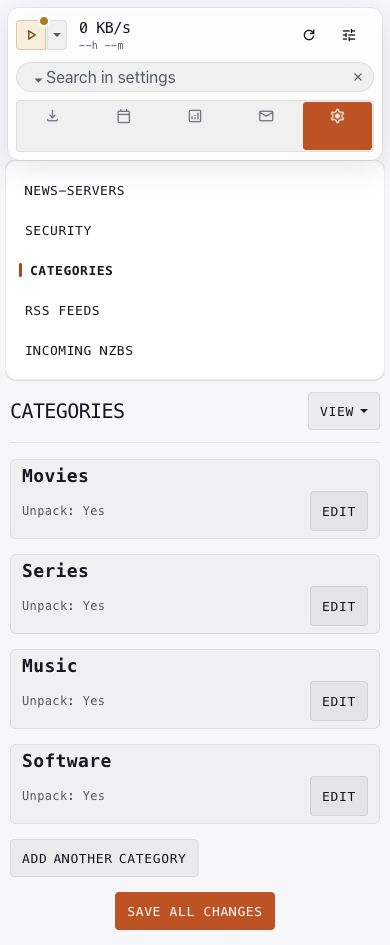
News servers, categories, feeds, and scheduler tasks start as compact lists. Click Edit beside an entry to show its fields and action buttons. Click Close to return to its summary. Closing an editor keeps unsaved changes; it does not save them.
Add opens a new entry. Up, Down, and Delete appear inside its editor. Reordering changes entry numbers. Review scheduler commands that refer to server or feed numbers after you reorder those lists.
Health-notice counts remain visible on closed rows. Open the affected entry to read the notices.
Search and open help
Use Search in settings to find an option name or description. Select an option in the results to open its section and editor. Clear the search to return to the section menu.
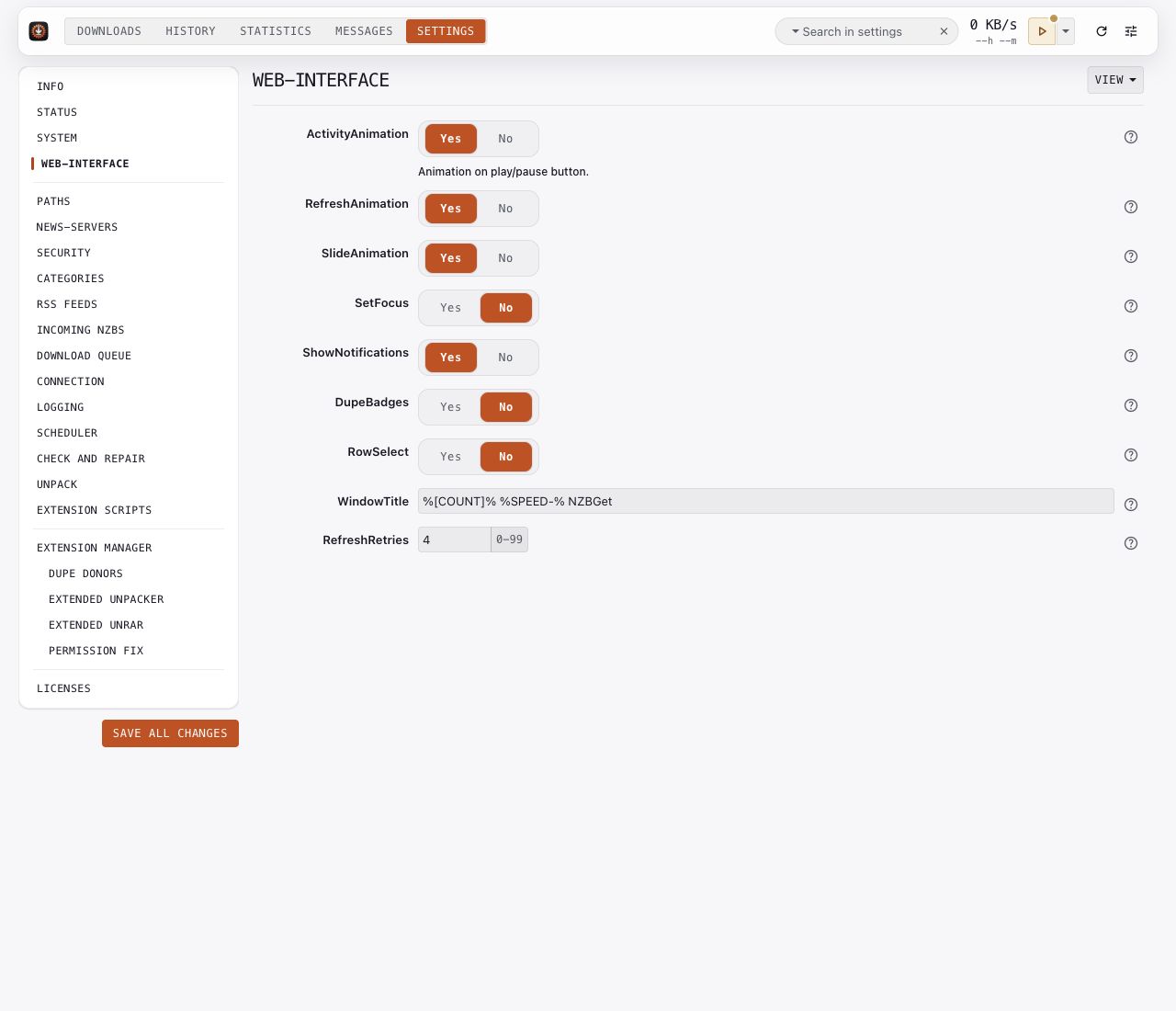
Option help starts collapsed. The question-mark button beside a row opens that option's help. The View menu can show help for all rows. With a keyboard, use Tab to reach a button and Enter or Space to activate it.
Save and reload
- Finish your edits across the sections you need.
- Click Save all changes once.
- Read the confirmation. Reload the service if it prompts you to apply server configuration.
- Check Status and the Messages tab after the reload.
Web-interface preferences belong to this browser. Server and extension settings belong to the daemon's configuration. See Maintenance before backing up or restoring that file.
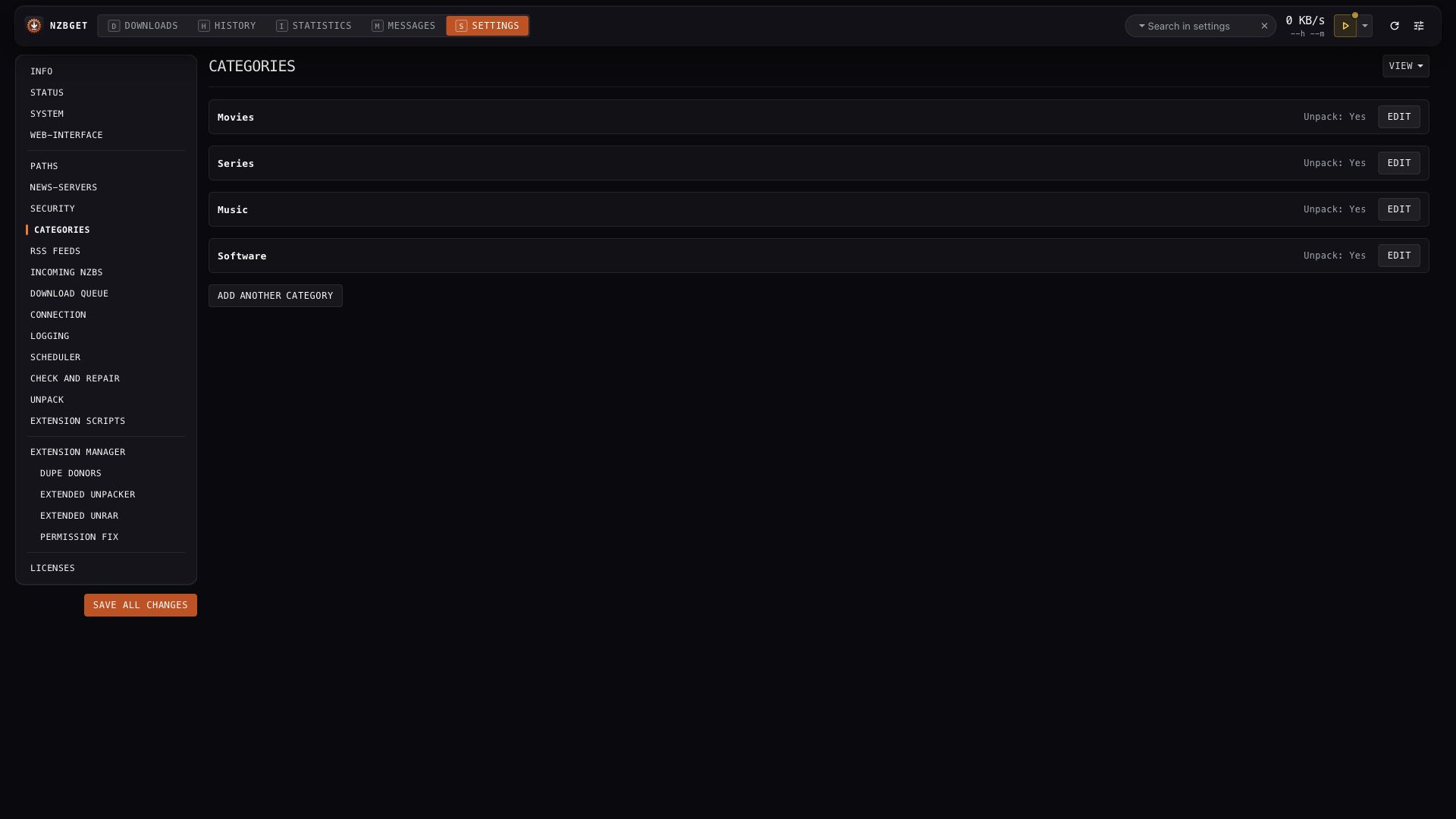
Use the available desktop width
On desktop, the section menu stays at the left edge while the open section fills the remaining width. Wider windows give lists, editors, and Status panels more room. Statistics also uses the available width.
Use Settings on a phone
The section menu scrolls within a short area, leaving room for the open section. Scroll that menu to reach another section, or use search to jump to an option. Use the keyboard or tap the controls to open editors and help.
Choose a theme
The header settings menu offers light and dark themes. Theme and language choices belong to the browser. The pictures in the section guides use the light theme.