Play your first title
With the connections configured and TMDBHelper set up, you're ready to stream.
Start playback
- Open TMDBHelper and browse to a movie or TV episode.
- Start playback (or choose Play with NZB-DAV if prompted for a player).
- NZB-DAV searches your providers and shows the source picker.
Choose a source
The picker is a full-screen list of every release that passed your filters, ranked by your chosen sort order. Each row shows the release name, resolution, HDR format, video codec, audio format, source type, container, file size, age, indexer, and release group.
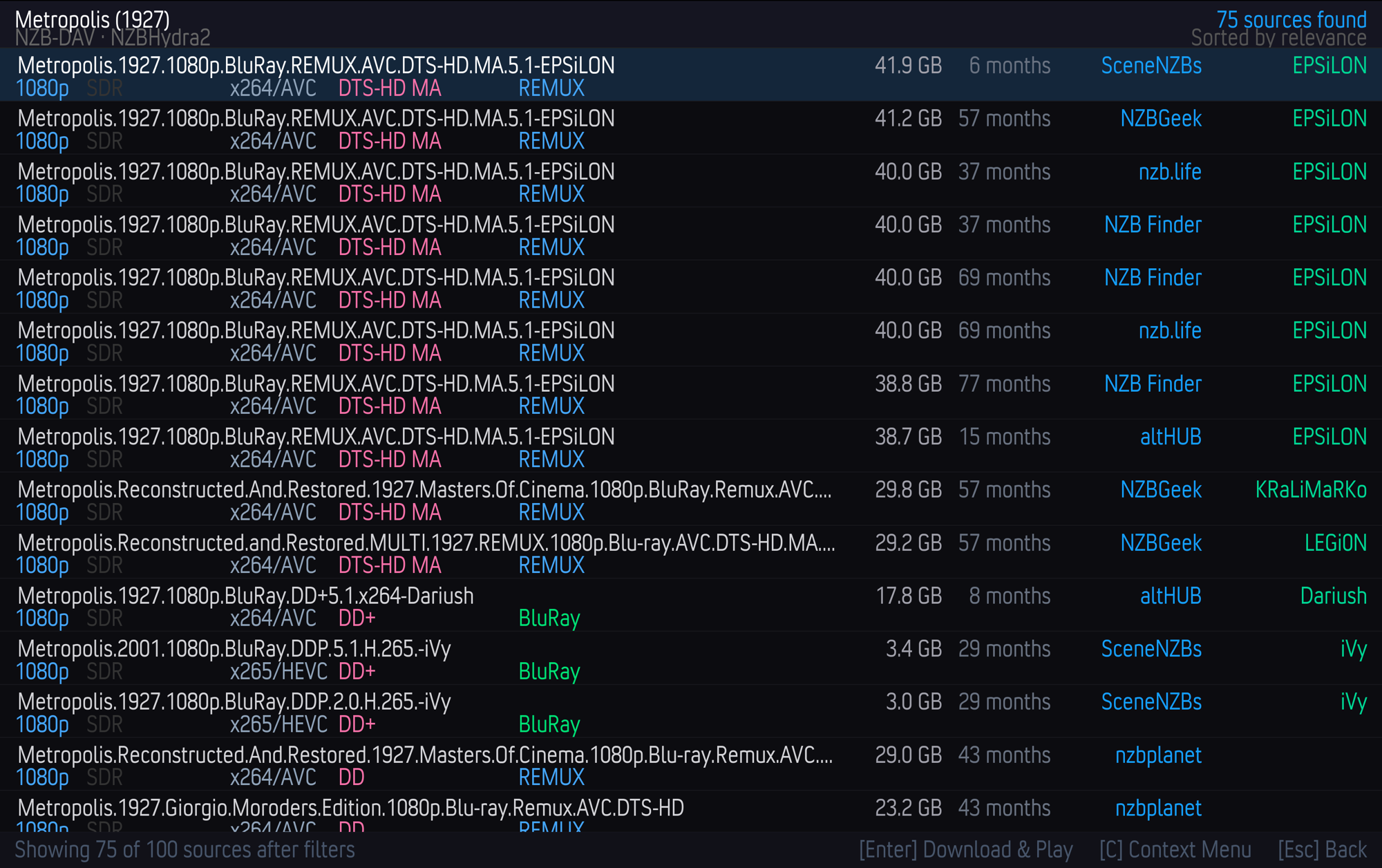
- A green DL tag marks a release that's already downloaded on your backend, so it can play almost immediately.
- The status bar shows how many sources passed your filters.
- Select a row to download and play it. Press C for a context menu, or Esc to go back.
If you turn on Auto-select best match in settings, NZB-DAV skips the picker and plays the top-ranked result automatically.
Reuse a completed season pack
When a completed backend job contains multiple reliably named episodes, NZB-DAV remembers the episodes in that job. A later request for one of them shows Already downloaded season pack — Episodes … first in the picker (or prefers it when auto-select is enabled). Selecting that row reuses the completed download without submitting another NZB.
Before playback, NZB-DAV rechecks the exact backend job and its original completed folder, inventories it again, and selects the requested season/episode from the filename. A missing requested episode never falls back to a differently named episode. If the job or folder was conclusively removed, the saved row becomes stale; temporary network, authentication, or server errors leave it saved for a later attempt while normal online results remain available.
Watch the download progress
After you pick a source, NZB-DAV submits it to your backend and shows a progress dialog that reflects the real download state:
| Stage | What it means |
|---|---|
| Submitting NZB… | The NZB is being sent to nzbdav. |
| Queued… | Accepted, waiting to start. |
| Fetching NZB… | nzbdav is retrieving and parsing the NZB. |
| Waiting for propagation… | Waiting for article availability. |
| Downloading… n% | Actively downloading. |
| Paused | The backend paused the job. |
Playback starts automatically as soon as enough of the file is ready. If the release turns out to be a placeholder or has missing article bodies, NZB-DAV detects it and moves on rather than playing a broken file.
Resume where you left off
If you've watched part of a title before, NZB-DAV offers Kodi's native Resume from… / Start from beginning prompt when you replay it. Resume points are tracked per release, so they survive even though the underlying stream URL changes each session.
One-time seeking setup for large files
The first time NZB-DAV needs the remux tier for a large file, it may show a
dialog about advancedsettings.xml. Setting Kodi's cache memory size to 0
lets large files stream in direct pass-through mode with full seeking. This is
optional but recommended on low-memory or 32-bit devices. See
advancedsettings.xml and seeking for the
exact steps.
What happens behind the scenes
If you're curious how a pick becomes a playing stream — search, submission, polling, the local proxy, and mid-playback recovery — read How it works.
Something didn't work?
See Troubleshooting for the most common setup, search, WebDAV, and playback issues.